
Read on for Complete Tutorial on how to add browser push notifications on your WordPress site.
In this blog, I will first start from what are browser push notifications ? And then go on to talk about how can you set up browser push notifications for your site. This is something I learnt recently so am happy to share it with you.
So here is a quick overview of what we are going to talk about today
What are Browser push notifications ?
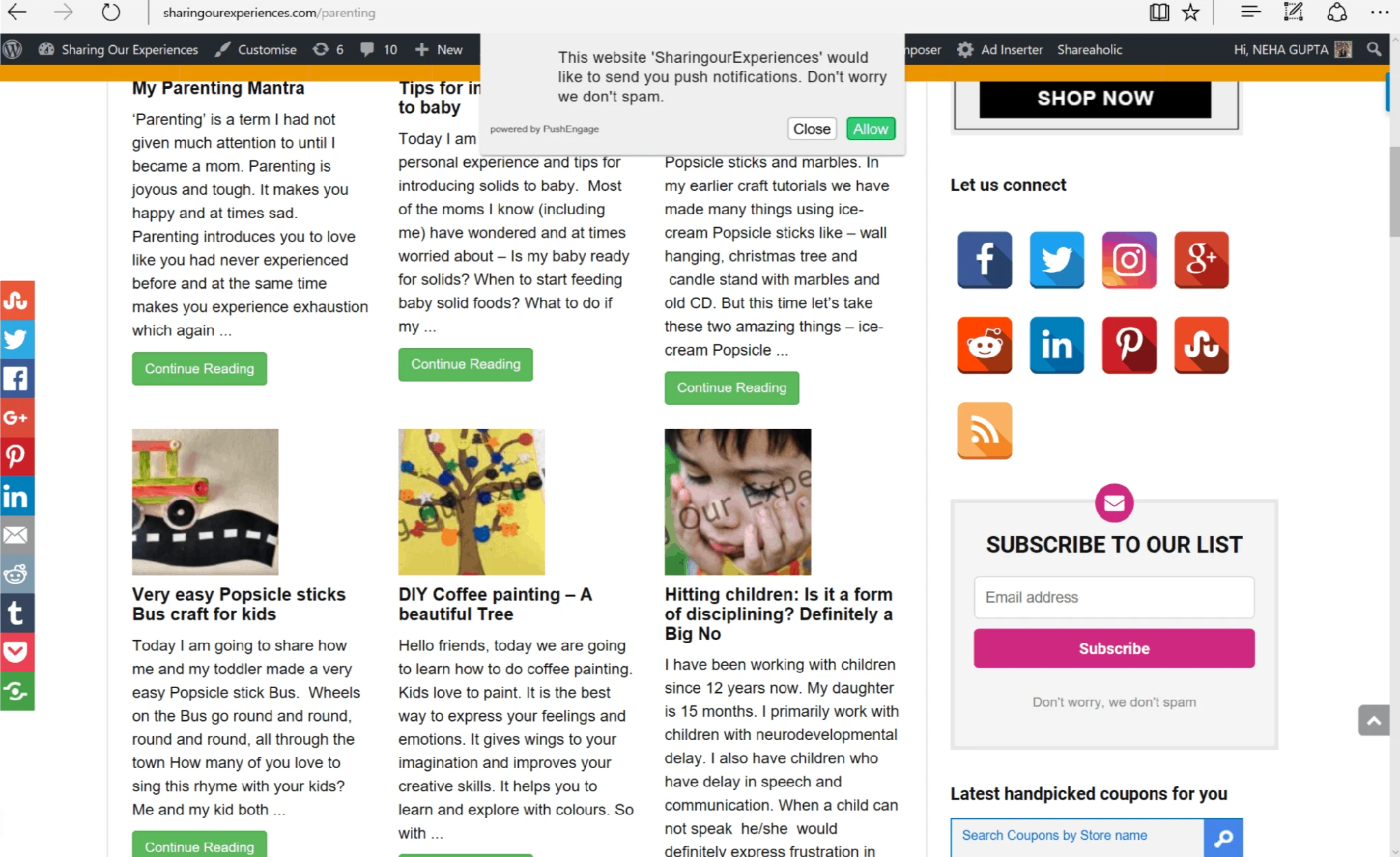
When we browse some sites you will see a pop up “This website would like to send you push notifications with an option of Allow or Deny” These are called Browser Push Notifications.
For Sharing our experiences, Browser push notification looks something like this
Now what happens when you click on allow push notifications ?
For mobile apps we get notifications on our mobiles. You can see similar notifications from sites on which you have allowed browser push notifications.
How browser push notifications help you gain more traffic and subscribers
So once you set up push notifications for your site, you are offering a new way to your readers to get notified of new blogs apart from other methods like mail newsletters.
Statistics show that most of the readers are using mobiles for reading as opposed to laptops and tabs. These notifications will help you gain more traffic as more people are bound to click on notifications on their mobile and read your blog when you publish them.
How to set up Browser notifications for your blog in less than 5 minutes using Pushengage
Create an account on Pushengage
Create an account on Push engage here and start your free trial. Clicking on will take you to below screen directly.
Click on Start Free Trial and then create your Pushengage account

Fill in the necessary details as shown below
Once you have registered you will get a login into PushEngage dashboard.
Configure your website details in Pushengage
Login into the Pushengage dashboard and configure the website details. This is how the dashboard looks like

Click on Settings-> Installation settings on left hand side of Dashboard
1) You need to provide your Website Name and an image for Push Notifications.
Image is a key part of notification, and Pushengage team recommends a solid image of 192×192 pixels or any square image.
2) You need to copy the javascript provided in the Pushengage dashboard in the header of your website.
Some themes provide an option where you can add any script for headers without editing the code files. For themes who do not provide this option, you will need to update the header.php file.

If you have an http site (sites starting with http://www.<yourdomainname>.com) then you can also add and activate a Pushengage WordPress plugin.
This plugin is also useful for sending notification from your WordPress dashboard rather than logging onto Pushengage website for each notification
We will talk about how to install and activate WordPress Pushengage plugin later in this article.
3) If you have an https site (like ours) rather than a http site you will also need to download package files.
These package files will need to be uploaded in root folder of your website so it is accessible from https://www.example.com/manifest.json and https://www.example.com/service-worker.js.
4) Set up welcome notifications to your subscribers

5) You should also configure your Time Zone settings in Profile.
This is necessary so that your notifications appear in correct time zone. You can do this by clicking on link in above picture or going to Settings -> Profile Settings
Well that’s it. You have successfully set up web browser notifications on your WordPress site by using Pushengage.
Click here to Start setting up browser push notifications for your site
Which browsers are currently supported by Pushengage
PushEngage provides you a platform for Chrome, Firefox, Samsung Browser, and Safari (coming soon) Browser Push notifications for your users on Desktop and Mobile.
Useful details for setting up Push engage web browser notifications
In case if you are not able to upload the package files for https sites then there is another method that you can follow. You will find all related details on how to go live with pushengage here.
Other frequently asked question is how to set up WordPress plugin for Pushengage and how to get API key for WordPress Pushengage plugin so lets talk about it now.
How to Install and activate WordPress Pushengage Plugin
Download and activate the plugin
How to get API key for WordPress Pushengage plugin. Go to Settings->Get API Key and get API key
Hope you found the above tutorial on Pushengage and how to set up Browser push notifications in your WordPress site useful.
If you need help with anything on WordPress or want to move your self hosted blog you can join our facebook group .
Liked this post ?
You may also want to check out another of our popular post How to earn money from your WordPress blog in 2 minutes
Your Turn Now
In case if you liked this article do show your support by sharing this article.
Stay connected with us using your favorite social media, we can be found on

Add a comment
If you have any suggestions or reviews don’t forget to share in the comments below. We would love to hear from you.
I am thinking of migrating to WordPress, actually doing it. I am definitely coming back to this, once the initial works are done.
Sure dear. I am in love with wordpress as you can actually achieve anything with it. If you need any help at all please feel free to ping me. I also have a Facebook group where I help others with making a website on WordPress.. Wish you all the best for moving your blog ☺️
Informative post on Pushengage! Would definitely try it out. Thank you 🙂
Thank you so much Shalini. I am also definitely going to try out some of your recipes. Loved them.
Any time you set up browser push notifications for your site, I will definitely subscribe. Thanks for stopping by.
what a resourceful site this is… all information we seek on daily basis regarding technicalities come handy here. I am following you for future posts too now.
Thanks you so much Dipika. I along with other authors on this site try our best to share whatever we learn. I am so glad that it was useful to you. Look forward to hearing from you and Thanks for stopping by
Excellent article. Very useful. so basically this is a tool and not a plug in and anyone can incorporate it in a Word press site.Will try it out .Also one query: So when someone clicks allow, that person receives notifications while browsing if we post anything new on our site, right?
Thank you so much Aesha. It is a method and we also have a WordPress plugin for easy integration of Pushengage with wordpress site and sending out notifications for new posts.
And thanks for your query. I will update the article to say it clearly and may be add a section on how to send notifications using Pushengage.
Very helpful tutorial, I needed this for my blog. Thanks and cheers!
Thanks. I am glad you found thus tutorial on browser push notifications useful ☺️ any queries please feel free to ping me. You can also join our Facebook group on how to make a website using WordPress. Thanks for stopping by
This is extremely useful thx for sharing such a detailed tutorial on push notifications
Thanks Akshata, I am really glad that you found this pushengage tutorial useful. Any time you need help, please feel free to contact me
Found this post on Push engage browser push notifications extremely useful, Neha.
Thank you so much Rohan and thanks for stopping by, Any time you set it up for your site feel free to contact me for any queries that you may have on Pushengage push notifications.
This is very helpful. Thanks for the uncomplicated and user-friendly write-up
You are most welcome Agnivo.
I have learnt most of this stuff by going through very technical article so I really wanted to explain first what are Browser push notifications and how to add them in a very easy and user friendly way. I am glad that I was able to do it. Thanks for stopping by.
Bookmarking this for future reference. Thanks for this informative post
Thanks Anupriya for bookmarking this tutorial on push notifications. You are most welcome. Feel free to contact me in case of any queries whenever you use this bookmarked article.
Very informative article, I also want to use it. Will keep taking tips from here.
Thanks Roopali. If you face any issues in adding Browser push notifications to your site feel free to contact me. I am glad to be of help.
Look forward to hearing from you and Thanks for stopping by.
Wow! This is so informative 🙂
Thanks Tripti. I am glad that you found this tutorial on adding web push notification to a wordpress site useful.
Look forward to hearing from you. Feel free to ask any queries that you may have wither via comments here. You can also use our for asking any queries that you may have.
Informative post , I m going to install this plugin today only . Please write a post about how to use Canva for making featured images for my blog.. I m in dire need
Thank you so much Monika, I am glad you found this article on browser push notifications useful. Thanks for the idea would love to do an article on canva as well
This was much needed for a person like me!!
Thanks a lot krupa. I am glad you found this article useful
That’s a great piece of information. I am revamping my site and this article will surely come handy. Thanks for sharing.
Thanks surbhi. Wish you all the very best for the revamp. Feel free to contact me for any other questions..